
 |
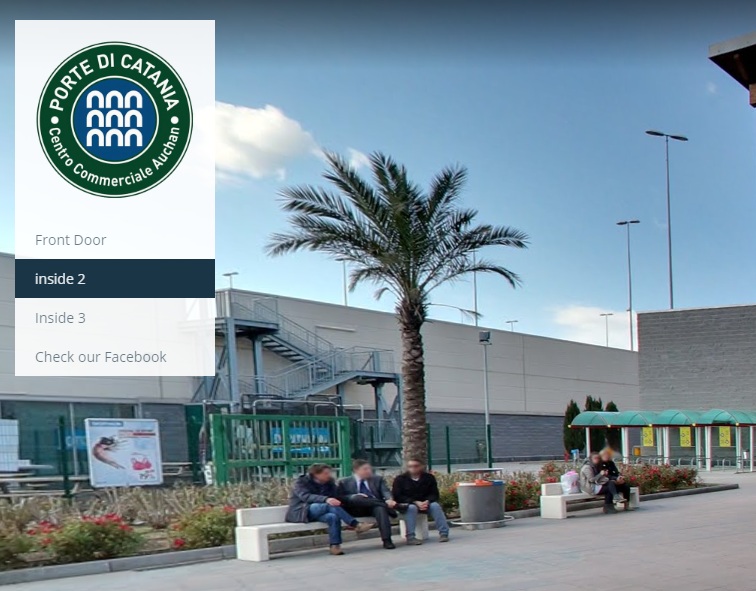
With “Navigation Menu” you can create menu items in your virtual tour. With our drag'n drop navigation menu builder, you can easily create any navigational menu for your virtual tour project. |
|
In below picture, you can add your company or project logo in the top of your navigation. And also you can add this navigation into your desired panoramic views of your virtual tour. Which means you can create as many as navigation menu in your virtual tour and make them visible on different panoramic views.
|
|
|
|
|
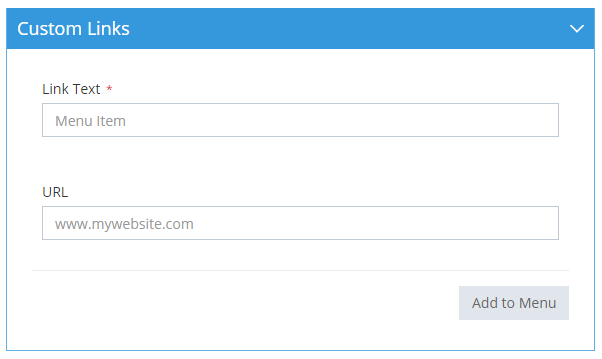 |
Custom LinksWith help of "Custom Links" you can connect your virtual tour with your website or any other links like your social links, official website etc that you wanted to add in your navigation menu. |
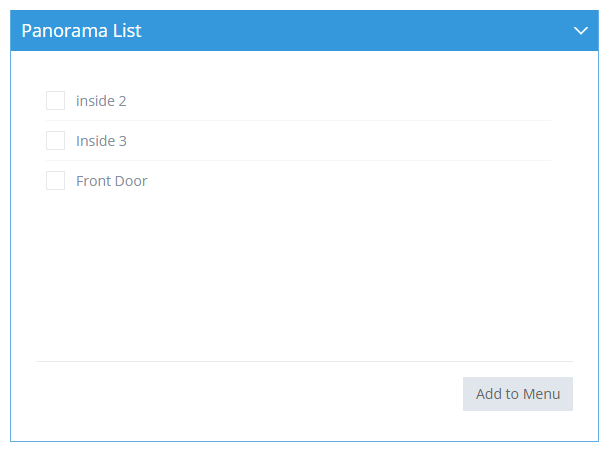
Panorama ListIn this section, all of your uploaded panoramic images will be listed. Check the panorama names and click the "Add to Menu" button to add it into your navigation menu. |
 |
 You can click on settings button to open "Edit Navigation Menu" section.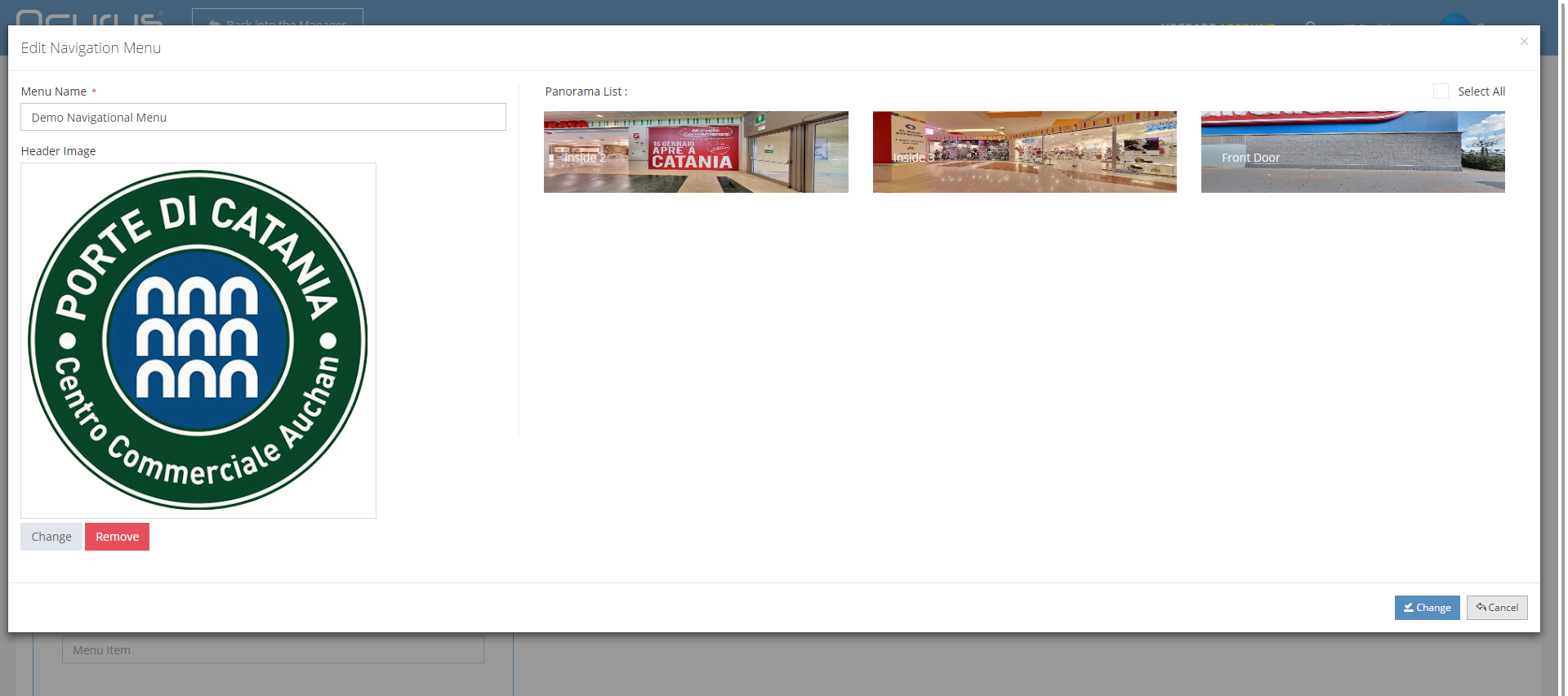
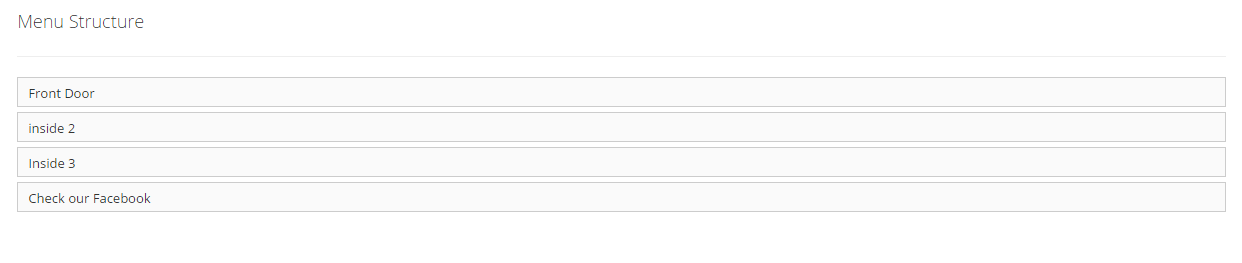
Menu Structure
In "Menu Structure" section, all of your panoramas links and custom links will be listed. You can drag'n drop to change it's order. Not only changing order, you can also make them a submenu of other menu.