
 |
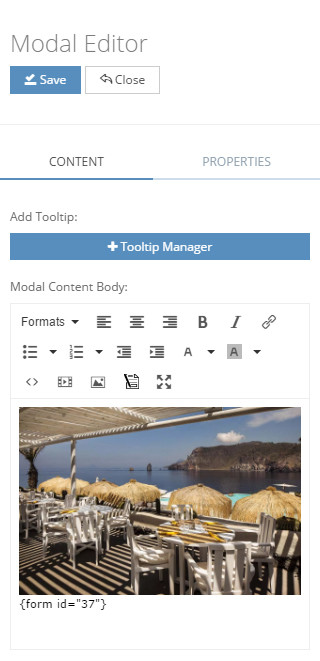
MODAL EDITOR Modal window is one of the most beautiful thing in virtual tour. As you seen the image on the left side, there is a CONTENT and PROPERTIES section on modal window editor. Let me try to explain each one of it.
CONTENT section In this section, you can insert your content of your modal. We are implementing every possible tools in this TinyMCE editor. We hope you can create your modal content whenever you wanted. Add tooltip - Button below this section, you can create tooltip on this marker. You can found Tooltip Manager tutorial here: https://ocurus.com/learn/47 Source - On the bottom section of TinyMCE editor you can see <> icon. This is source code editor. If you have a knowledge of HTML coding then you can write your own HTML code here. Insert/Edit Video - If you need to insert video from a youtube or other source, you can use can click on this icon button. Media - If you need to insert an image or other media file, you can use click on this icon button. Form - If you already created reservation, booking or any kind of form using our Form builder and show that form on your modal then this tool will help you to show it on the modal window. Fullscreen - Big screen for the editor is so useful. So you can make it full screen and start to manage your content. |
|
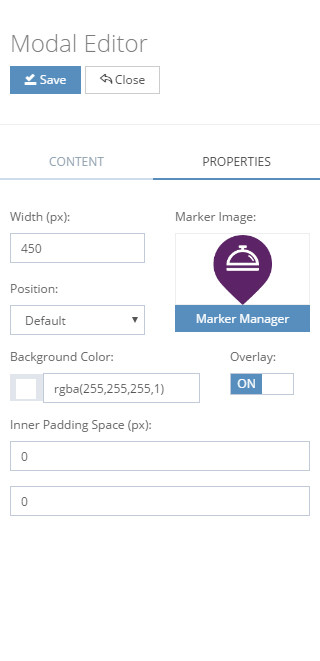 |
PROPERTIES section In this section, you can manage your marker image and fully control modal properties to make it exactly as you or your client wanted. Width - Change Modal width from here. Marker Image - If you want to change your marker image, then you can use this option. Position - With help of this option you can change your modal position. We provide 4 types of position for you. Click to see example: https://ocurus.com/learn/45
Background color - In this field, you can change your modal background color. You can insert RGBA based color code and A is representing opacity of your modal background. You can insert 0 to 1 float value here. Overlay - If you make it ON, there will be a transperent black background outside of your modal window. It will attract more attention on your modal window. Inner padding Space - If you want to increase the space inside modal window against modal content, then you can use this option. |