From the previous tutorials, you are already familiar with minimap editor. But you don't get any explanation doc related with minimap editor fields. In this tutorial, you can learn everything related with minimap editor section.
|
|
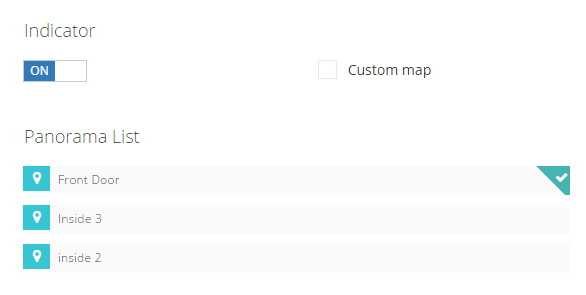
In this section, you can see 3 different option related with mini map.
- Indicator - You can use this option to enable or disable your indicator.
- Custom Map - Use this option to make your mini map become a default and always visible on your panorama.
- Panorama List - From this list, you can select and add your desired panorama into your mini map.
|
|
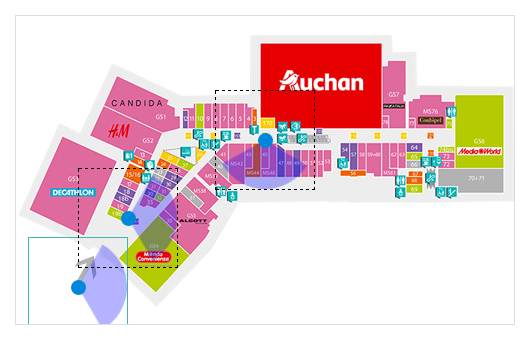
In this section, you can see add your panoramas from panorama list into your custom mini map image.
Also you can open every panoramas options with your mouse click.
You can see it in real action from below image.
|
|
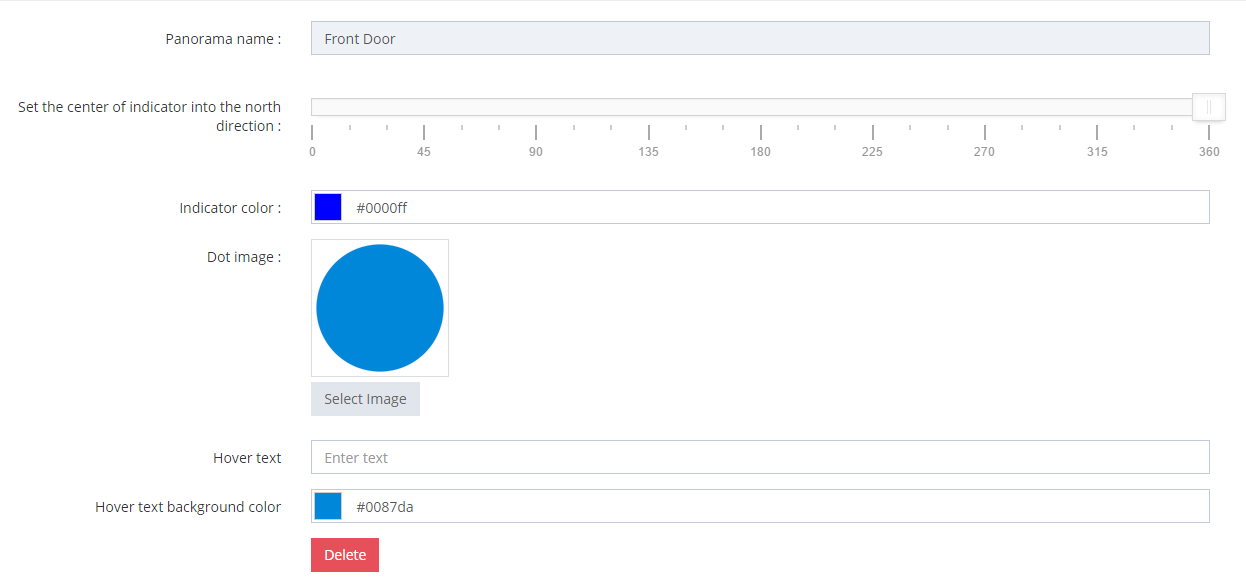
- Panorama name - Your selected panorama name will be displayed here.
- Set the center of indicator into the north direction - You should set all of your panoramas indicator in current mini map into the north direction.
- Indicator color - You can set your indicator color into the suitable color of your virtual tour.
|
- Dot image - All of panoramas represented by dot image. You can change your dot image into a any image.
- Hover text - You can add text in your panorama. This text will visible when you hover the panorama dot.
- Hover text background color - With this field you can change it's hover text background color.
|